Apple Notes Is All You Need
While everyone debates Notion vs. Obsidian vs. Roam, the best note-taking app has been sitting on your dock the entire time. Here's how to actually use it.
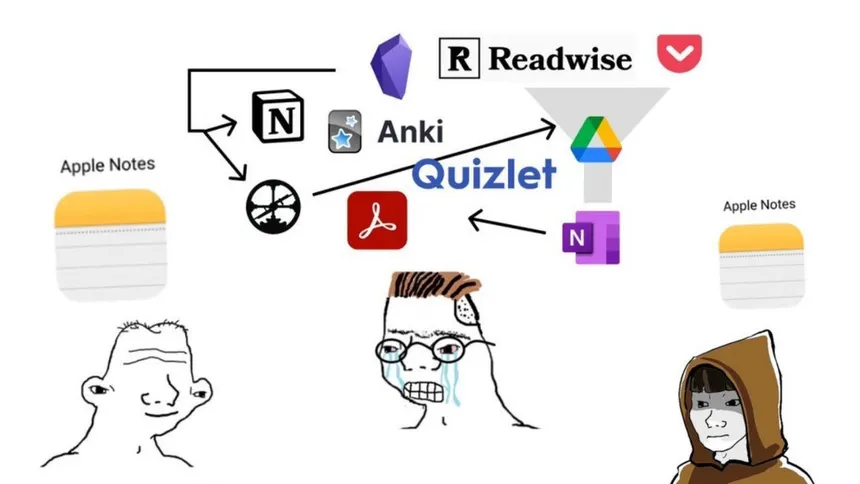
You know who you are.
Essentials
Tips That Change Everything
Scan Documents Like a Pro
Apple Notes has a built-in document scanner that's genuinely excellent. Open a note, tap the camera icon, and choose "Scan Documents." It auto-detects edges, corrects perspective, and the OCR makes everything searchable. No third-party app needed.
The scanned PDFs are stored directly inside the note and sync across all your devices via iCloud. You can even sign scanned documents directly in Notes by tapping the share button and using Markup.
Quick Notes from Anywhere
Quick Notes are everywhere once you know where to look. On Mac, hover the bottom-right corner or press fn+Q. On iPad, swipe from the bottom-right or tap a locked screen with Apple Pencil. On iPhone, add the Quick Note button to Control Center.
- Safari resurfaces related Quick Notes when you revisit a page you clipped from
- The "Add Link" button captures the current URL automatically
Lock Notes with Face ID
Sensitive information? Long-press any note and tap "Lock Note." It encrypts the note and you unlock it with Face ID, Touch ID, or your password. Better security than most dedicated vault apps.
Tables That Actually Work
Tap the table icon to insert a clean grid. Swipe left on a row to delete it, drag handles to reorder. It's not Excel, but for quick comparisons, shopping lists, or simple planning, it's perfect — and much faster.
Tags and Smart Folders
Type #tag anywhere in a note to create a tag. Then create Smart Folders that automatically collect notes matching specific tags. This gives you Notion-style organization with zero setup overhead.
#project #idea #todoRecord Audio & Get Transcripts
Tap the paperclip icon and choose "Record Audio" to capture voice notes directly inside any note. Notes generates a live transcript as you speak — fully searchable, copyable, and you can append the full text into the note body with one tap.
On Mac, drag audio files (.m4a, .mp3) into a note and get automatic transcripts. Transcription is processed entirely on-device — your audio never leaves your phone. Requires iPhone 12+ with iOS 18, or Apple Silicon Mac with macOS Sequoia.
Collaborate in Real Time
Share any note or folder and invite people to view or edit. Changes sync live with colored cursors showing who's editing what. Shared notes support @mentions and an activity view showing all recent changes.
Link Notes Together
Type >> and start typing a note title to create a link to another note. Build your own lightweight wiki without any plugins or extensions.
Instant Text Recognition
Drop any image into a note and Apple's on-device OCR lets you select, copy, and search text within photos. Handwritten notes from your iPad? Also searchable. It just works — silently, in the background.
Pin Your Most Used Notes
Swipe right on any note and pin it to the top. Your daily to-do, a running project brief, your workout log — always one tap away, never buried under yesterday's random thoughts.
Inline PDFs and Attachments
Drag any PDF, image, audio recording, or file directly into a note. Everything renders inline and stays synced. One note can be your entire project hub — brief, assets, and reference material in a single scroll.
Power Moves
For the Keyboard Obsessed
hold then press tap
Checklists with Indentation
Create checklists and use Tab to nest sub-items. Completed items auto-sort to the bottom. Perfect for grocery runs or multi-step tasks.
Instant Formatting
Select text and apply formatting instantly. Title, Heading, and Body styles via the Aa menu keep things structured.
Quick Note & New Note
Start a new note instantly from anywhere, or swipe from the bottom-right corner on iPad to launch Quick Note.
Spotlight Search
Type anything — Spotlight searches inside your notes. Text, scanned documents, handwriting, even text in images. Your notes are always findable.
Share Extension
From Safari, Maps, or any app — hit Share and save directly to a specific note. Web links, locations, and content clip right in with previews.
Tables & Find
Insert tables for structured data, and use Find to search within the current note. Two power features most people miss.
Advanced Workflows
Shortcuts-Powered Tricks
Note Templates via Shortcuts
Apple Notes doesn't have built-in templates — but the Shortcuts app fills the gap. Build reusable note structures for journals, meetings, and weekly reviews that auto-fill today's date and save to the right folder.
Smart Web Clipper
The built-in Share Sheet works, but it dumps every clip into a separate Quick Note. With a Shortcuts-based web clipper, all highlights from one article go into a single note — with timestamps and a source URL at the top.
Every Way to Launch Quick Notes
Quick Notes are available from more places than most people realize. Here's the complete list across all your devices.
On Mac
- Hot corner — hover over the bottom-right corner (customizable in System Settings)
- fn + Q from any app
- "Add Link" button captures the current Safari URL into your Quick Note
- Right-click selected text in Safari and choose "Add to Quick Note"
On iPhone
- Add the Quick Note button to Control Center — works from Lock Screen too
- Share menu in Safari: tap "Add to Quick Note"
On iPad
- Tap the locked screen with Apple Pencil to start writing instantly
- Corner swipe gesture from the bottom-right
- Control Center button (same as iPhone)
Hidden feature: If you highlight text on a webpage and save it to a Quick Note, Safari remembers. When you revisit that page later, your highlight reappears and a Quick Note thumbnail pops up in the corner — automatic contextual bookmarks.
The Comparison
How It Stacks Up
| Feature | Apple Notes | Notion | Obsidian | Evernote |
|---|---|---|---|---|
| Price | Free | Free / $10+ mo | Free / $4 sync | ~$11-14 /mo |
| Platforms | Apple only | All | All | All |
| Offline | Full | Partial | Full | Full |
| Privacy | On-device | Cloud | Local files | Cloud |
| Setup Time | Zero | Medium | High | Low |
| Collaboration | Yes | Yes | No | Limited |
| Audio Recording | Yes | No | No | Yes |
| Doc Scanning | Yes | No | No | Yes |
| Note Linking | Basic (>>) | Robust | Advanced | Basic |
| Extensibility | None | High | Very high | Low |
| Data Portability | Poor | Medium | Excellent | Medium |
Apple Notes is the right choice if you want something fast, free, private, and deeply integrated with your Apple devices. If you need cross-platform access, relational databases, or a plugin ecosystem — Notion, Obsidian, and Evernote each have their strengths. But for the majority of personal note-taking, Notes is more than enough.
The best tool is the one you actually use. Apple Notes is free, private, synced everywhere, and fast enough that the thought never outpaces the app.